
Password Setting and Reset: Having Trouble Logging In Following Our System Upgrade?
Important Notice: Password Reset for All Users
Due to a system upgrade conducted by the company to improve performance and security between September 21–22, 2016, all users are required to reset their passwords before logging into the system again.
************************************************
Table of Contents
* Password Reset
* Password Settings
* Frequently Asked Questions
If you forget your password, please reset it by following the steps below.
- For security reasons, Customer Service cannot check or inform you of your password. Please proceed with the password reset by yourself.
Password Reset Steps
- Open the UNIQLO application and tap the person icon at the bottom-right of the screen.
- Select “Profile” → “Log In” → “Forgot Your Password”.
- Under “Reset Password”, enter your registered email address.
- A password reset link will be sent to your email from noreply-enews@mail.th.uniqlo.com
(The verification link is valid for 30 minutes and can be used only once.) - Click the link to set a new password.
Please set your password using English letters and numbers, with a length of 8 to 20 characters.
- The password cannot consist of letters only or numbers only.
- You may use the following symbols as desired: (!“#$%&'()*+,-./:;<=>?@[]^_`{}|~)
For your security and peace of mind while shopping, please consider the following precautions when setting your password:
- Use a password different from those used for other services.
- Avoid passwords that third parties can easily guess.
- Do not reuse your current password.
- If any possibility of unauthorized access is detected, the company may reset your password to protect your security.
-
Q. The password has been changed, but still cannot login.
A. Possible Cause and Solution
Lockdown Mode is enabled on the device.
For IOS- Open Settings.
- Scroll down and select Privacy & Security.
- Scroll to the bottom and select Lockdown Mode.
- Tap Turn Off Lockdown Mode.
- Tap Turn Off & Restart to confirm, then enter your device passcode when prompted.
For Android
For One UI 8.0 or earlier- Go to Settings > Lock screen and AOD > Secure lock settings.
- Enter your PIN, password, or unlock pattern.
- Turn on Show Lockdown mode option so that the Lockdown mode option appears in the Power menu.
- Open the Power menu, then tap Lockdown mode. This temporarily disables fingerprint and face recognition for unlocking the device.
- Press and hold the Volume Down + Power buttons at the same time, then tap Lockdown mode.
- When Lockdown mode is enabled, fingerprint and face recognition are temporarily disabled. You will need to use your PIN, password, or unlock pattern to unlock the device.
- Lockdown mode is integrated into the security functions of the Power menu. When activated, the device requires a PIN, password, or unlock pattern instead of biometric authentication.
-
Q. I did not receive the Verification Code.
A. Possible causes and solutions
Email was blocked or rejected- Please allow messages from noreply-enews@mail.th.uniqlo.com.
- We recommend completing the process in an environment with a stable internet connection.
-
Q. I did not receive the Verification Code.
A. Possible causes and solutions
Email was blocked or rejected- Please allow messages from noreply-enews@mail.th.uniqlo.com.
- We recommend completing the process in an environment with a stable internet connection.
The email was sent to the Spam/Junk Mail folder
Please check your Spam or Junk Mail folder.
Contact UNIQLO Thailand
 CHAT SUPPORT
Monday - Sunday: 9am - 6pm
(Including Public Holidays)
Monday - Sunday: 9am - 6pm
(Including Public Holidays)
Related services
App Benefits
The UNIQLO APP, Enjoy Online Shopping Experiences
Bulk Purchase
We are welcome to make bulk purchase order for company's uniform or a gift for celabrate on festival
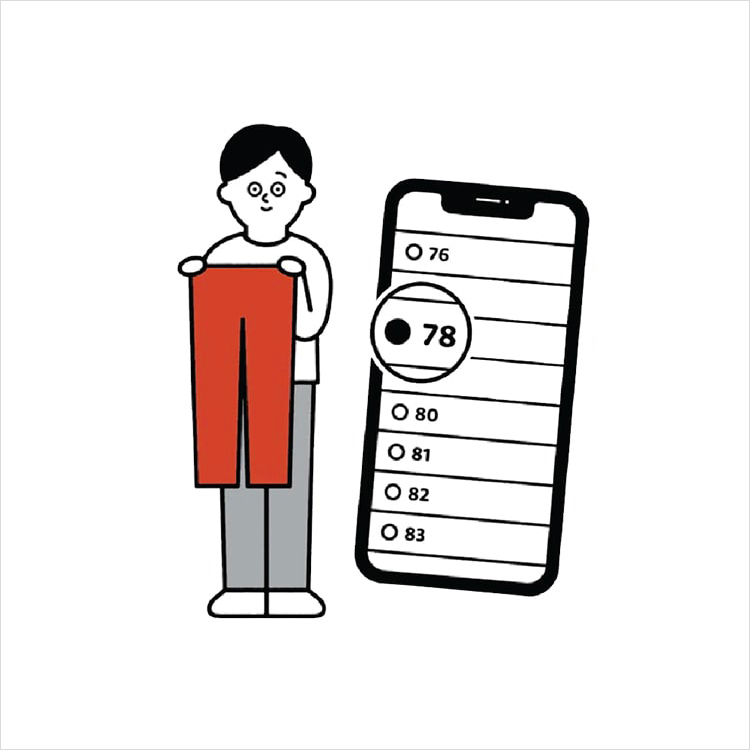
Online Alteration Service
We offer alteration to assist you both of item which purchased from store or online store. Please bring the items with the original receipt or the original tax invoice, contact any branch near home for getting the assistance